Using my first Dynamics trial simply as an open-ended exercise in exploration, quite a few things are worth noting before getting into customising the solution to meet your needs.
What you can see
Playing with the dummy data and adding your own allows you to appreciate the work that has gone into the development of usability across this product. Navigating to and viewing data is (reasonably) intuitive, from the dashboards to the forms and views.
Help is at hand

Help is available throughout the system, with context-sensitive help available on the ribbon, and tool tips hover over almost all the elements. One fault with this latter is that occasionally the tool tips are out of date…

Reporting
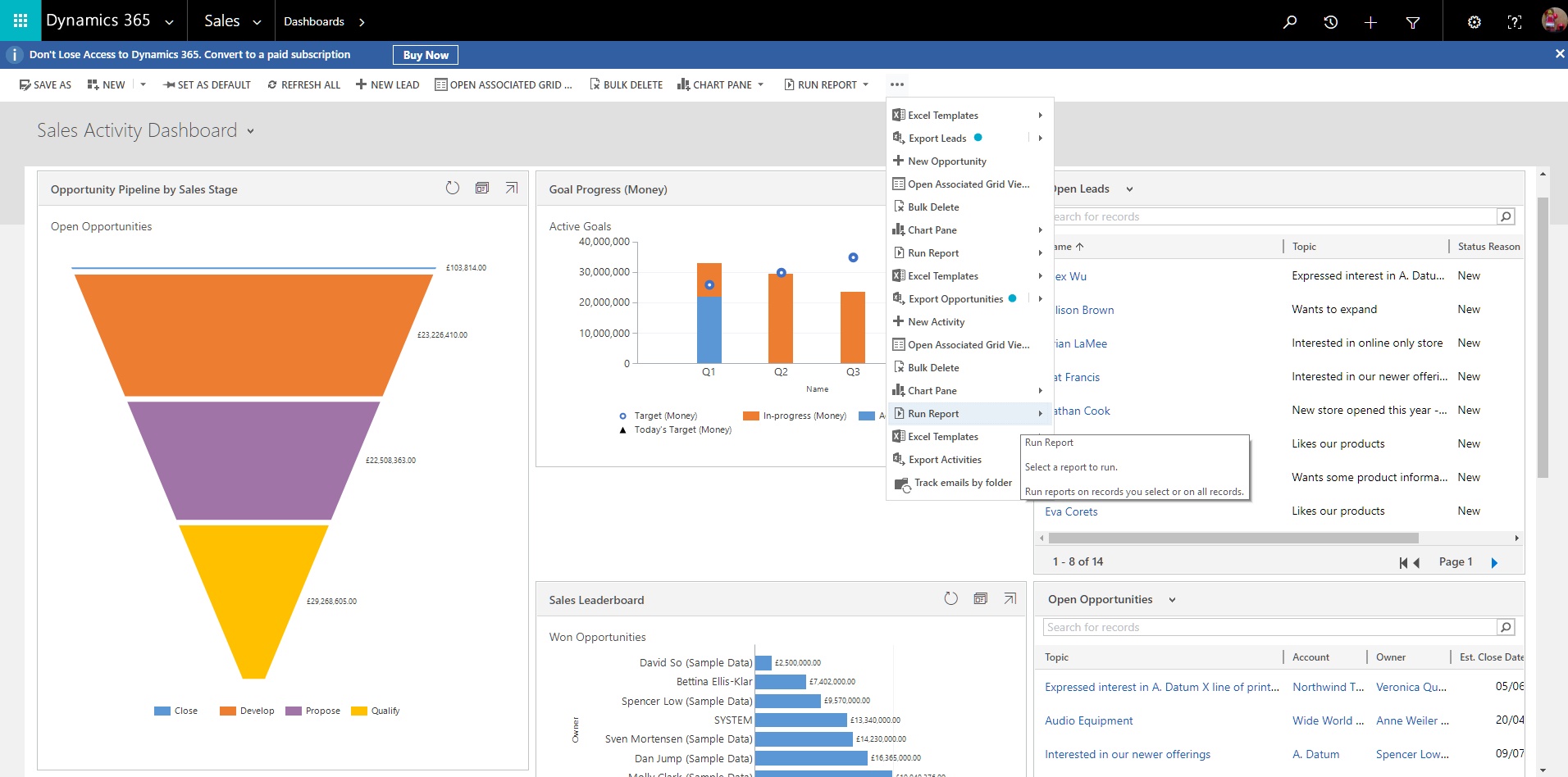
Built-in reports are accessed directly from the ‘more’ ellipsis on the function ribbon — from a dashboard, be sure to select a chart to reveal this ribbon. Once a report is run, the filter can be tweaked, and it appears to be very simple to export or print the results…a topic to be explored in a future blog.
What you can do
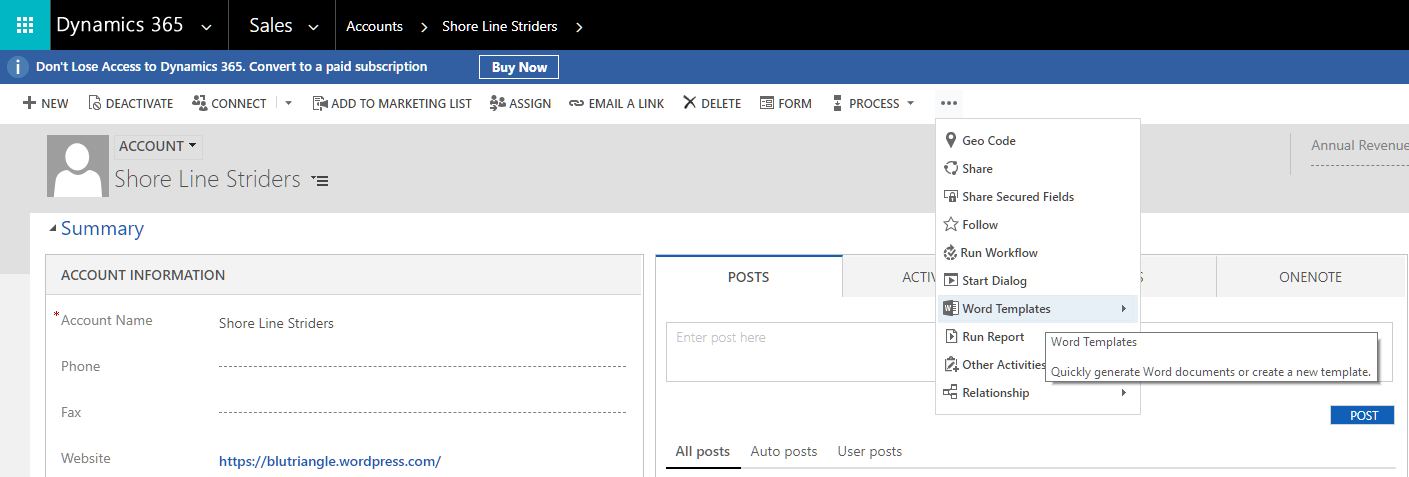
Dynamics integrates with Office 365, and templates are easily accessible and editable to output your reports / invoices / client details directly to Word or Excel…use the ‘more’ ellipsis to access your templates. In addition, activities can integrate directly with the Outlook 365 app and thereby appear in that interface — some user roles may only require an Outlook 365 interface to perform their tasks.
Productivity in data entry is further improved using business process flows, a guided experience to help the user follow a process defined by the business — there are dummy business process flows (not to be confused with workflows) already in place, so you can see how this works. In addition to allowing users to apprehend more easily what happens now and what happens next, the flow panel allows the user to enter essential data very simply whilst avoiding pop ups or dialogue boxes.

Finding stuff
A striking feature is the powerful search facility. This comes in three formats: Quick, Global and Advanced.

Quick searches the view, Global searches across a number of entities and the most exciting option, Advanced, allows the user to define, save and edit queries. This last option requires the user to have a basic understanding of entities (tables) and fields and how queries are constructed, but the GUI is really well put together and a capable user who understands the data should have few problems. Keen eyed amongst you will spot that the quick search facility is not available on forms — however the native search functionality within the browser should be adequate for most users’ needs.
Using the advanced search facility, users can not only create their own query, but also save the resultant view, and even pin this view to make it the default when they log in and navigate to that section of the system. The downside to this user-level configuration is that it will not be included in any upgrade or migration — the customisations will have been made to the ‘out of the box’, managed Microsoft solution(s)…more on this in another blog.

 EKlär Solutions